> ## Documentation Index
> Fetch the complete documentation index at: https://docs.bigmodel.cn/llms.txt
> Use this file to discover all available pages before exploring further.
# OpenClaw
> 在 OpenClaw 中使用 GLM Coding Plan 的方法
OpenClaw 是一个在您自己的设备上运行的个人 AI 助手,可以连接到各种消息平台。它可以通过 GLM Coding Plan 等渠道配置使用智谱的 GLM 模型。
GLM Coding Plan 支持 OpenClaw 使用,但采用次级调度与尽力交付策略,Coding Agent 任务享有资源抢占优先权,高负载下 OpenClaw 任务将自动触发包括动态排队、限流等公平使用策略。
注意:若您使用的是非官方 OpenClaw 配置方式时,请确保配置的模型提供商端点为 Coding 端点 `https://open.bigmodel.cn/api/coding/paas/v4`
## 一、安装和配置 OpenClaw
* 个人版套餐的用户,通过 [个人编程套餐 > 套餐概览](https://bigmodel.cn/coding-plan/personal/overview),新建 API Key
* 团队版套餐的成员,通过 [团队编程套餐 > 我的套餐](http://bigmodel.cn/coding-plan?z_plan=team),获取 API Key(团队套餐 Key 与平台其他 API Key 不通用,使用团队额度请务必使用团队套餐 Key)
详细的安装指南,请参考 [官方文档](https://docs.openclaw.ai/zh-CN/install)
前置条件:
* [Node.js 22 或更新版本](https://nodejs.org/en/download/)
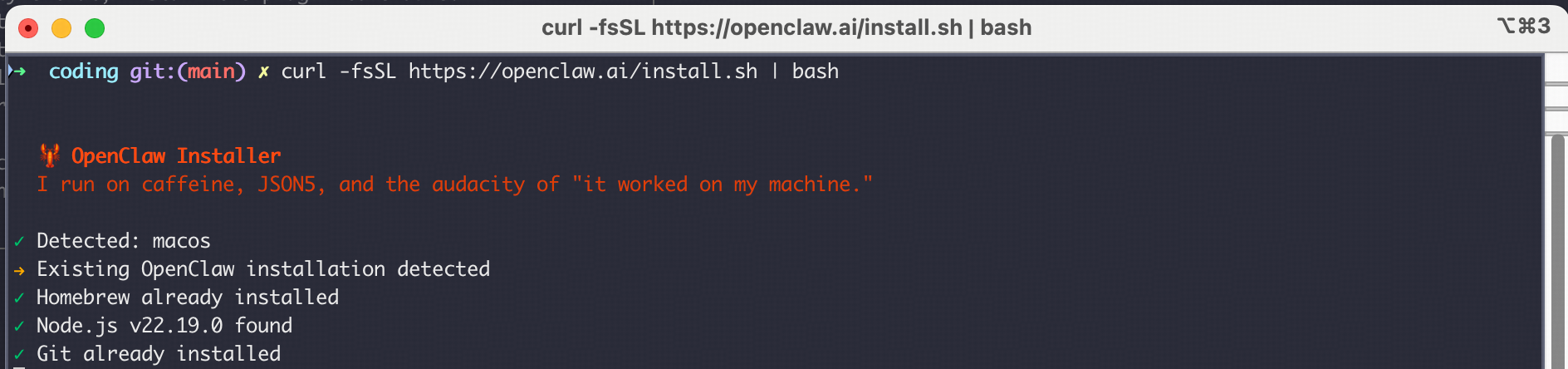
安装 OpenClaw 最简单的方法是使用官方安装脚本:
**macOS/Linux:**
```bash theme={null}
curl -fsSL https://openclaw.ai/install.sh | bash
```
**Windows (PowerShell):**
```powershell theme={null}
iwr -useb https://openclaw.ai/install.ps1 | iex
```
前置条件:
* [Node.js 22 或更新版本](https://nodejs.org/en/download/)
通过 npm 安装:
```bash theme={null}
npm install -g openclaw@latest
```
或通过 pnpm(推荐):
```bash theme={null}
pnpm add -g openclaw@latest
pnpm approve-builds -g # 批准 openclaw、node-llama-cpp、sharp 等
```
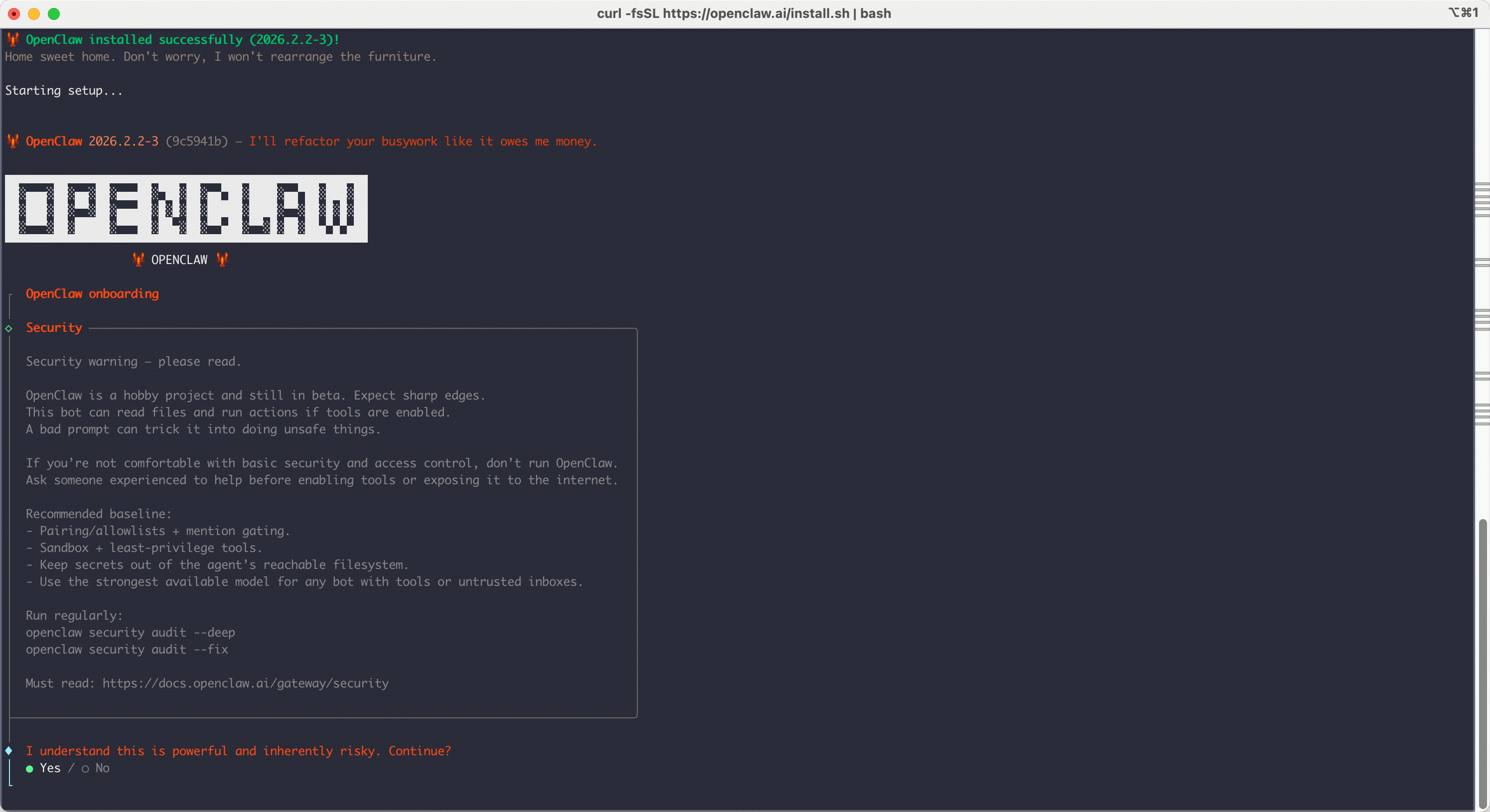
运行上述安装命令后,配置过程将自动开始。如果没有开始,您可以运行以下命令开始配置:
```text theme={null}
openclaw onboard --install-daemon
```
若之前已经初始化,您也可以运行 `openclaw config` 选择 `model` 配置。
开始配置:
* `I understand this is powerful and inherently risky. Continue?` | 选择 ● `Yes`
* `Onboarding mode` | 选择 ● `Quick Start`
* `Model/auth provider` | 选择 ● `Z.AI`
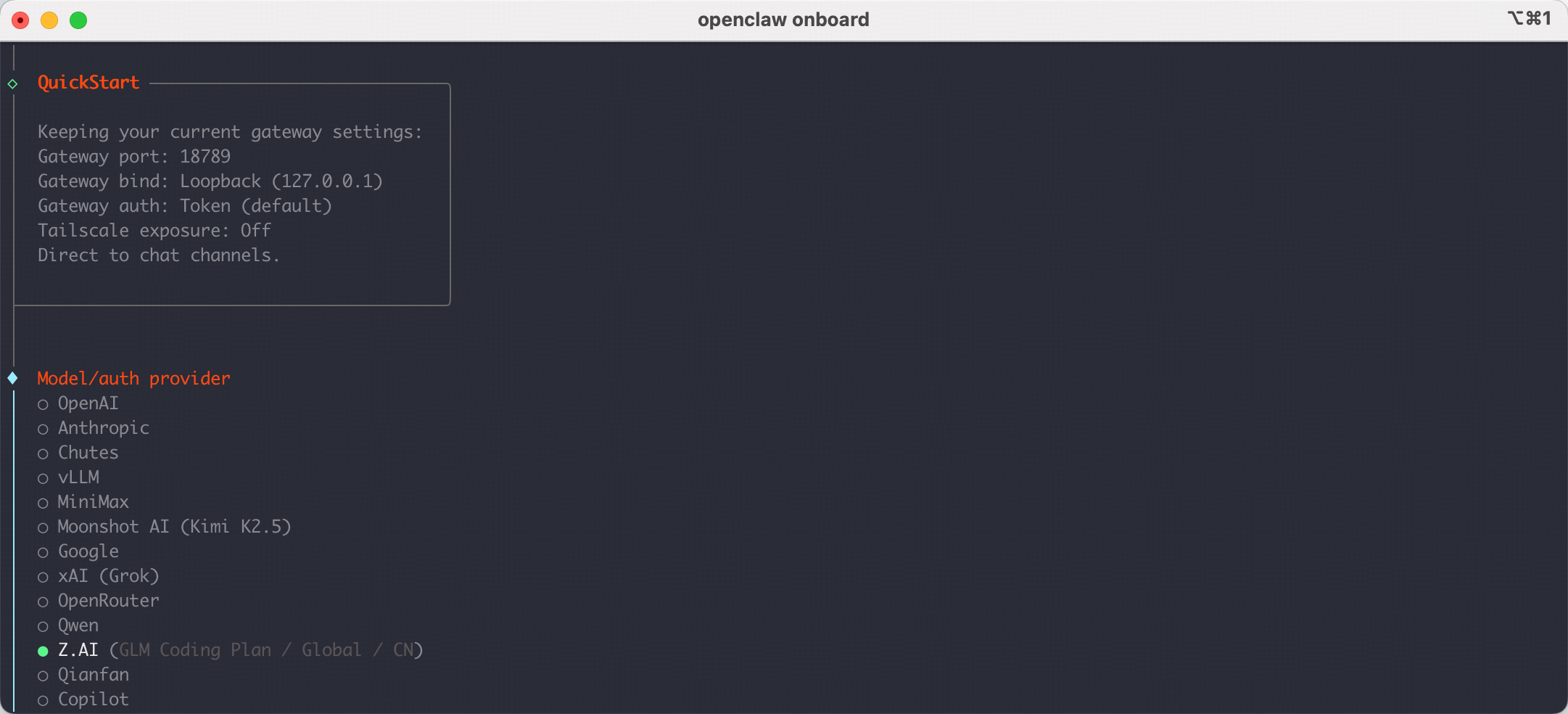
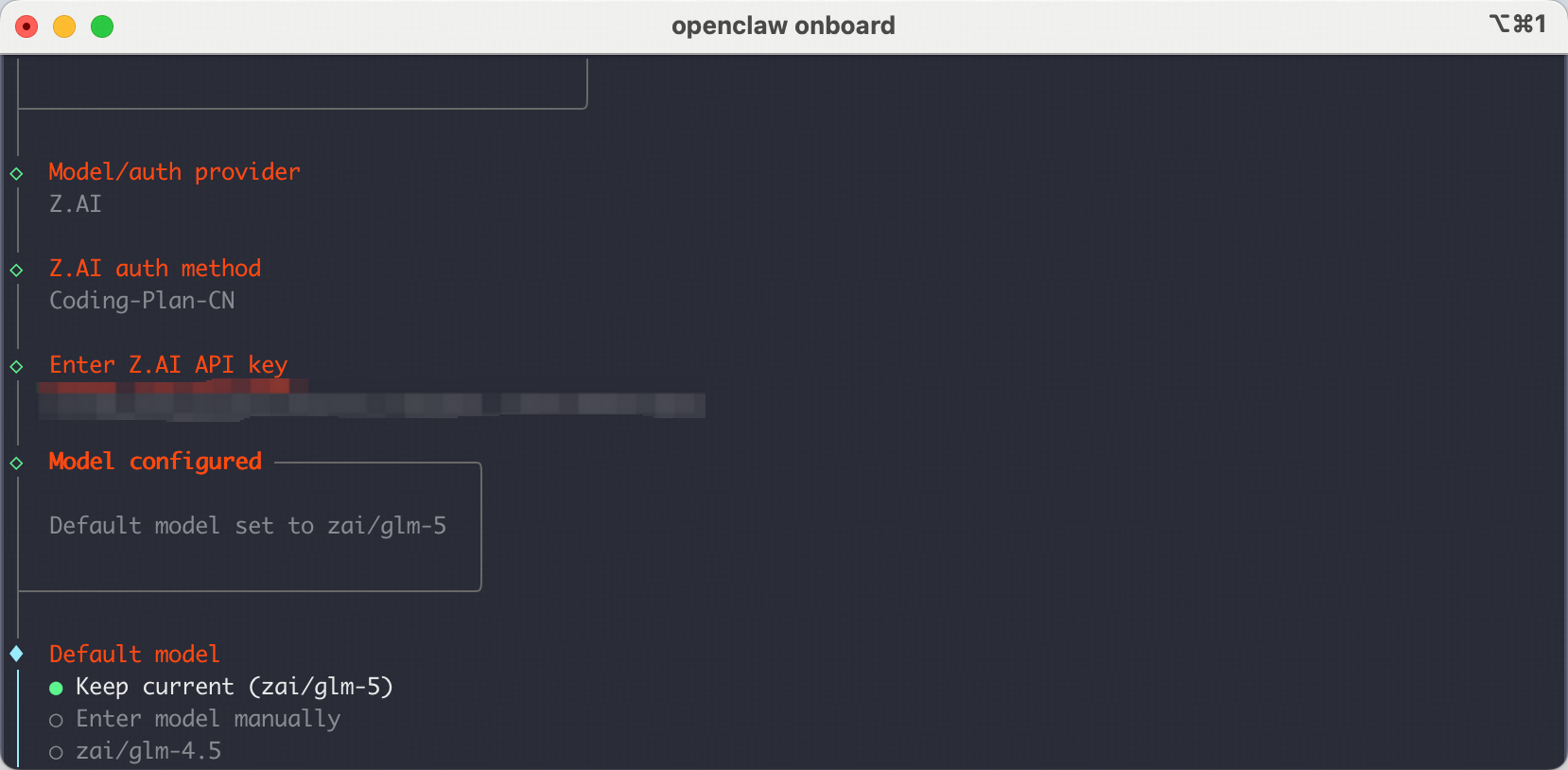
选择 `Z.AI` 作为 Model/auth provider 后,选 `Coding-Plan-CN`,系统会提示您输入 API Key。\
粘贴您的智谱 API Key 并按 Enter 键,然后选择您想要使用的 GLM 模型。\
注意: 目前在编程套餐中支持的模型有 `GLM-5.2 GLM-5-Turbo GLM-4.7` 请勿选择其它模型 `Flash FlashX` 等以免造成扣费。
继续完成剩余的 OpenClaw 功能配置。
* `Select channel` | 选择并配置您需要的功能。
* `Configure skills` | 选择并安装您需要的功能。
* 完成设置
设置完成后,cli 会询问您 `How do you want to hatch your bot?`
* 选择 ● `Hatch in TUI (recommended)`
现在您可以在 Terminal UI 中开始与您的机器人聊天了。
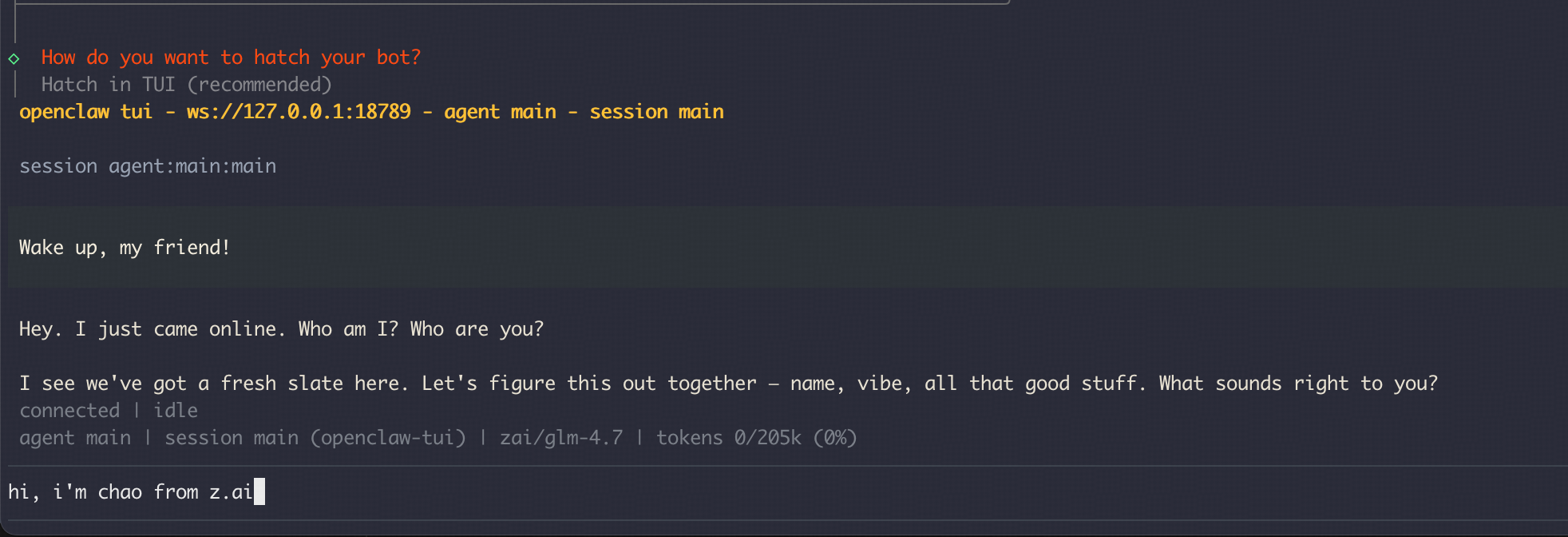
OpenClaw 提供了更多渠道供您与机器人交互,如 Web UI、Discord、Slack 等。 您可以通过参考官方文档来设置这些渠道:[Channels Setup](https://docs.openclaw.ai/channels/setup)
* 对于 Web UI,您可以通过打开终端中显示的 `Web UI (with token)` 链接来访问。
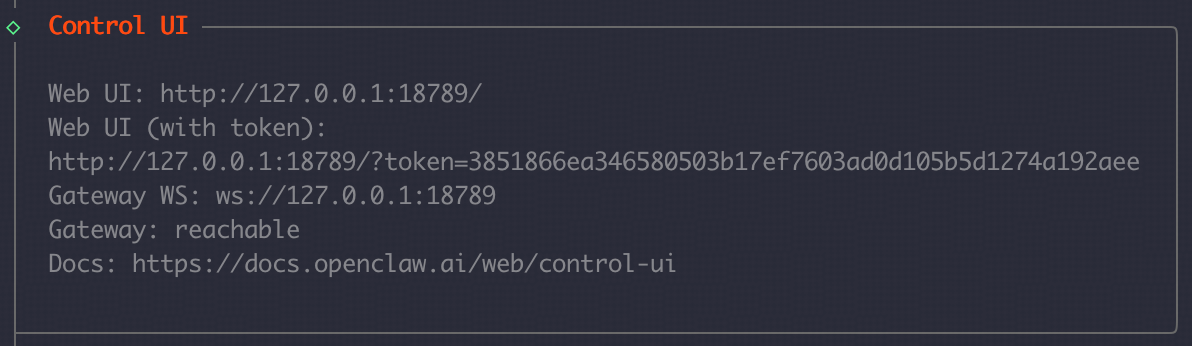
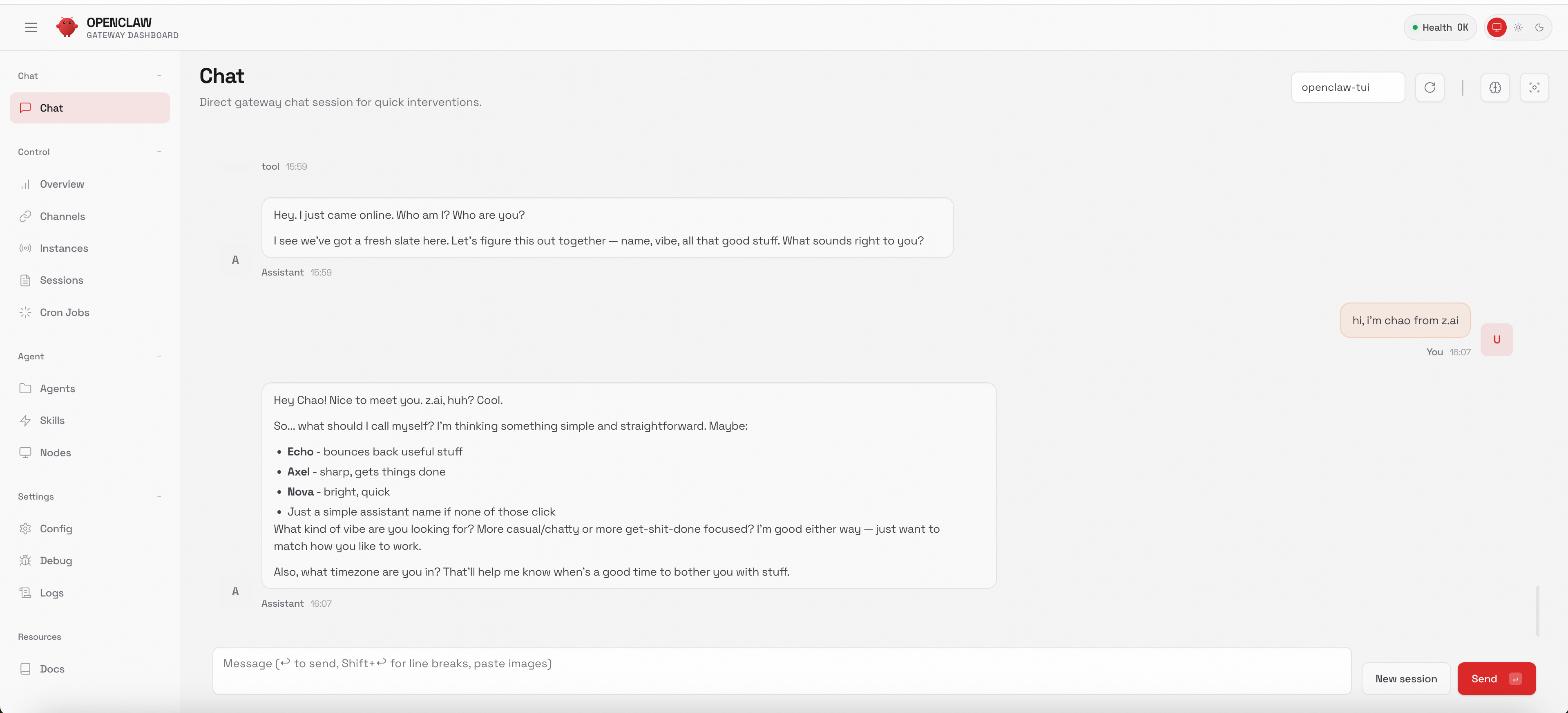
验证一切是否正常工作:
```text theme={null}
openclaw doctor # 检查配置问题
openclaw status # 查看网关状态
openclaw dashboard # 浏览器打开 Dashboard
```
详细的配置指南,请参考 [官方文档](https://docs.openclaw.ai/zh-CN/start/getting-started)
若配置不当或在没有适当访问控制的情况下部署,OpenClaw 可能会涉及安全风险。参考 [官方安全文档](https://docs.openclaw.ai/gateway/security)
## 二、切换使用最新 GLM 模型
> 对正在使用的 openclaw 无法通过选择 provider model 方式切换到最新 GLM 模型的用户 \
> 在已经配置了上一步 Provider 接入后,可以参考下方配置切换到最新 GLM 模型
在 `~/.openclaw/openclaw.json` 文件中的 `models.providers.zai.models` 数组中添加您要使用的 GLM 模型,在最后一个模型后面添加:注意 JSON 格式数组里面加逗号
```json theme={null}
{
"id": "glm-5.2",
"name": "GLM-5.2",
"reasoning": true,
"input": [
"text"
],
"cost": {
"input": 0,
"output": 0,
"cacheRead": 0,
"cacheWrite": 0
},
"contextWindow": 1000000,
"maxTokens": 131072
}
```
修改默认模型,找到 `agents.defaults.model.primary`
```
"primary": "zai/glm-5.2",
```
修改为
```
"primary": "zai/glm-5.2",
```
找到 agents.defaults.models(大约在第 71-76 行),添加:
```
"zai/glm-5.2": {}
```
**完整的修改后的文件片段参考如下:**
1. `models.providers.zai.models` 部分:
```
"models": [
{
"id": "glm-5.2",
"name": "GLM-5.2",
"reasoning": true,
"input": ["text"],
"cost": {"input": 0, "output": 0, "cacheRead": 0, "cacheWrite": 0},
"contextWindow": 1000000,
"maxTokens": 131072
}
]
```
2. `agents.defaults.model.primary` 部分:
```
"model": {
"primary": "zai/glm-5.2",
"fallbacks": ["zai/glm-4.7"]
}
```
3. agents.defaults.models 部分:
```
"models": {
"zai/glm-5.2": {"alias": "GLM"},
"zai/glm-4.7": {}
}
```
修改完成后重启网关:`openclaw gateway restart` , 这样就能直接使用 glm-5.2 模型了!
终端执行 `openclaw tui` 进入对话可以看到我们正在使用 glm-5.2 模型。
## 三、高级配置
### 模型故障转移
配置模型故障转移以确保可靠性:`.openclaw/openclaw.json`
```json theme={null}
{
"agents": {
"defaults": {
"model": {
"primary": "zai/glm-5.2",
"fallbacks": ["zai/glm-4.7", "zai/glm-4.6"]
}
}
}
}
```
### 使用技能
> 技能是一个包含 SKILL.md 文件的文件夹。如果您想为 OpenClaw 代理添加新功能,[ClawHub](https://clawhub.ai/) 是查找安装技能的最佳方法。
#### 安装 clawhub
```text theme={null}
npm i -g clawhub
```
#### 管理技能
* 搜索技能
```text theme={null}
clawhub search "postgres backups"
```
* 下载新技能
```text theme={null}
clawhub install my-skill-pack
```
* 更新已安装的技能
```text theme={null}
clawhub update --all
```
### 插件管理
> 插件是一个小的代码模块,通过额外功能(命令、工具和 Gateway RPC)扩展 OpenClaw。
查看已加载的插件:
```text theme={null}
openclaw plugins list
```
安装官方插件(示例:voice-call):
```text theme={null}
openclaw plugins install @openclaw/voice-call
```
重启网关
```text theme={null}
openclaw gateway restart
```
## 四、常见问题
1. **API Key 认证**
* 确保您的 智谱 API key 有效且已订阅 GLM Coding Plan
* 检查 API key 在环境中是否正确设置
2. **模型可用性**
* 验证 GLM 模型在您所在的地区是否可用
* 检查模型名称格式
3. **连接问题**
* 确保 OpenClaw gateway 正在运行
* 检查到智谱端点的网络连接
## 五、其他资源
* **OpenClaw 文档**: [docs.openclaw.ai](https://docs.openclaw.ai/)
* **OpenClaw GitHub**: [github.com/openclaw/openclaw](https://github.com/openclaw/openclaw)
* **智谱开发者文档**: [docs.bigmodel.cn](https://docs.bigmodel.cn/)
* **社区技能**: [awesome-openclaw-skills](https://github.com/VoltAgent/awesome-openclaw-skills)