> ## Documentation Index
> Fetch the complete documentation index at: https://docs.bigmodel.cn/llms.txt
> Use this file to discover all available pages before exploring further.
# 如何切换模型
当前,GLM Coding Plan 已面向全量用户(Max & Pro & Lite)支持最新的 GLM-5.2 模型,可以在您常用的 Coding Agent 中切换使用。
## 开始前
本文是面向现有 GLM Coding Plan 用户的模型切换指南,并非新手入门教程。开始前,请确保您已完成以下准备:
1. 已订阅有效的 GLM Coding Plan,并拥有可用的智谱 API Key。
2. 已为您的工具配置正确的调用地址:
* Claude Code / Goose(**Anthropic 兼容**):[https://open.bigmodel.cn/api/anthropic](https://open.bigmodel.cn/api/anthropic)
* 其他 **OpenAI 兼容**工具:[https://open.bigmodel.cn/api/coding/paas/v4](https://open.bigmodel.cn/api/coding/paas/v4)
3. 已确认您的工具可以成功调用现有 GLM 模型(例如 glm-4.7)。如果基础调用失败,请先完成问题排查。
## 在 Claude Code 中切换
### Step 1 更改默认配置
* 方法一:控制台使用 `vim ~/.claude/settings.json` 打开并编辑文件,编辑后 ESC 输入 `:wq` 保存。
* 方法二:访达 → 前往文件夹 → 输入 `~/.claude/settings.json` 找到此配置文件编辑。
Claude Code 配置文件位于:
`%USERPROFILE%\.claude\settings.json`
在 PowerShell 中创建或打开该文件:
```
New-Item -ItemType Directory -Force -Path "$env:USERPROFILE\.claude"
notepad "$env:USERPROFILE\.claude\settings.json"
```
您也可以将 `%USERPROFILE%\.claude` 粘贴到文件资源管理器的地址栏中,直接打开该文件夹。
如果您使用 Git Bash 或 WSL,`~/.claude` 可能会解析到不同的主目录。请确保您编辑的是当前启动的 Claude Code 安装所读取的同一个配置文件。
Claude Code 配置文件位于:
`~/.claude/settings.json`
创建或打开该文件:
```
mkdir -p ~/.claude
${EDITOR:-nano} ~/.claude/settings.json
```
如果您同时使用 WSL 和 Windows 原生环境下的 Claude Code,配置文件的位置可能不同。请确保您修改的是实际启动的 Claude Code 安装所使用的配置文件。
使用 GLM-5.2,需要在配置文件 `settings.json` 中,添加或替换如下环境变量参数:
```json theme={null}
{
"env": {
"CLAUDE_CODE_AUTO_COMPACT_WINDOW": "1000000",
"ANTHROPIC_DEFAULT_HAIKU_MODEL": "glm-4.7",
"ANTHROPIC_DEFAULT_SONNET_MODEL": "glm-5.2[1m]",
"ANTHROPIC_DEFAULT_OPUS_MODEL": "glm-5.2[1m]"
}
}
```
#### 使用 1M 上下文
注意开启 GLM 1M 上下文需要模型后缀加上 `[1m]` ,即 `glm-5.2[1m]`, 同时配置压缩窗口大小参数 `"CLAUDE_CODE_AUTO_COMPACT_WINDOW": "1000000"`
若模型参数加上 \[1m] 后缀后 Claude Code 识别模型不存在,则需要升级 Claude Code 到最新版本后重试。
#### 如何切换 effort(思考强度)
在 Claude Code 会话中,输入 `/effort` 命令即可切换思考强度。
切换后,Claude Code 内部会将所选的 effort 映射到 GLM-5.2 实际生效的 effort,对应关系如下:
| Claude Code 中选择的 effort | GLM-5.2 实际映射的 effort |
| ----------------------- | -------------------- |
| low, medium, high(默认值) | high |
| xhigh, max, ultracode | max |
Coding 任务推荐切换至 `max` effort,以获取更深度的推理与更稳定的复杂任务表现。
### Step 2 确认模型是否切换
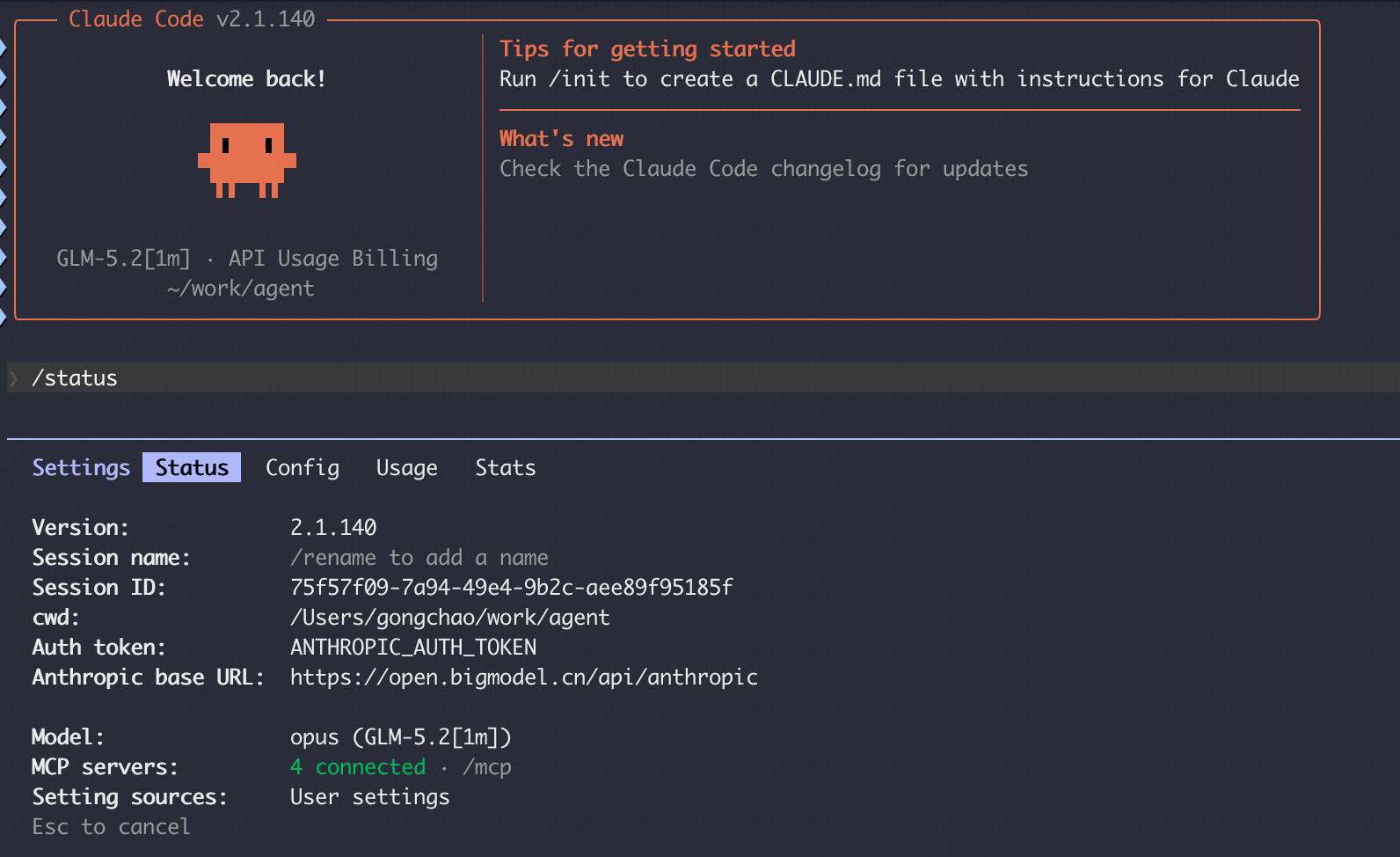
启动一个新的命令行窗口,运行 `claude` 启动 Claude Code,在 Claude Code 中输入 `/status` 确认模型状态:
1. **Settings source** 显示您的 `~/.claude/settings.json`.
2. **Model** 显示 `glm-5.2` 或 `glm-5.2[1m]`.
## 在其他工具中切换
目前只能用于可以自定义模型的 Coding Agent,若使用的 Agent 工具不能设置自定义模型,需要等待官方后续支持
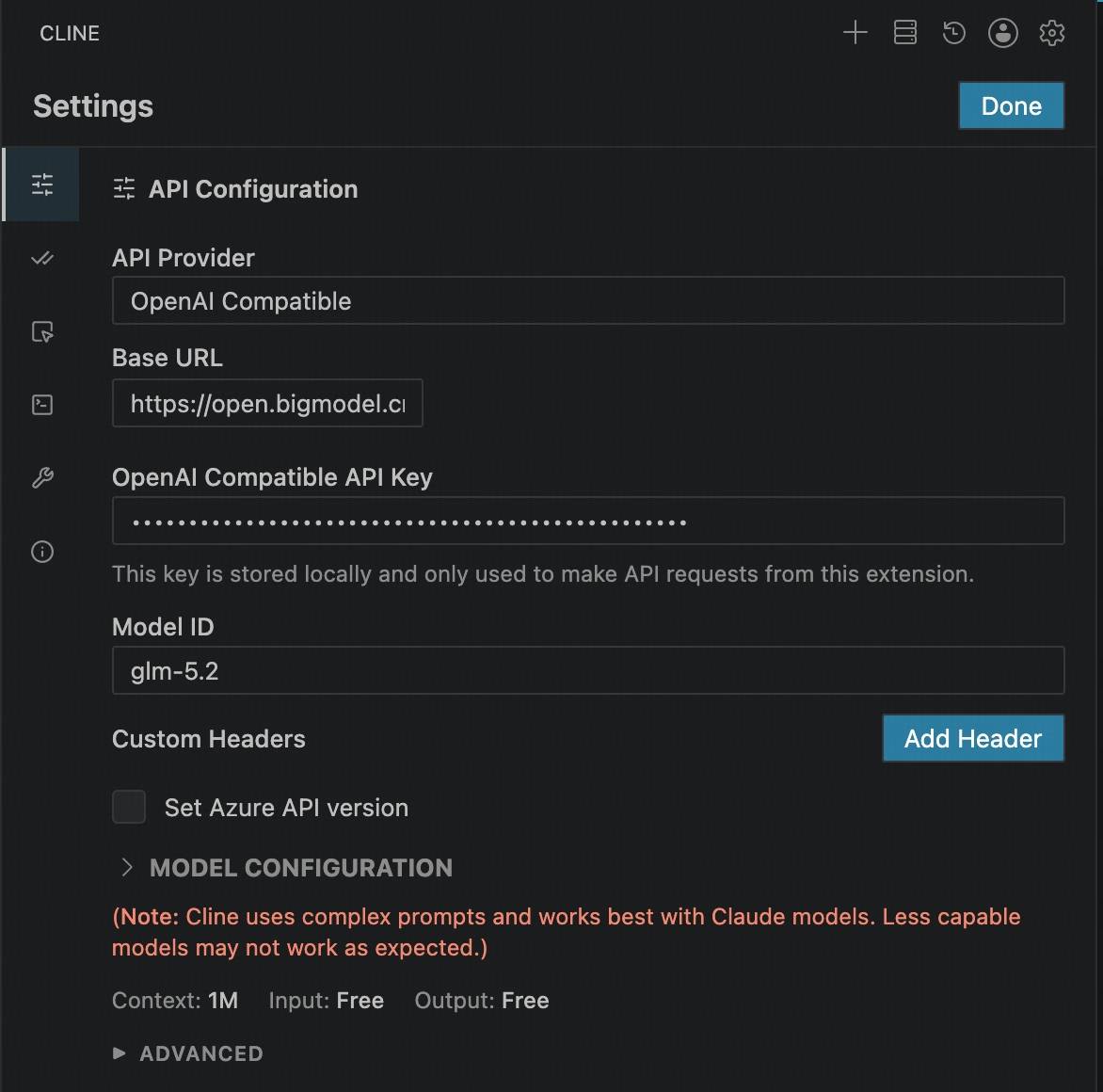
### 以 Cline 为例
请按照以下配置填入相关信息:
* **API Provider**:选择 `OpenAI Compatible`
* **Base URL**:输入 `https://open.bigmodel.cn/api/coding/paas/v4`
* **API Key**:填入您的智谱 API Key
* **模型**:选择"使用自定义",并输入模型名称(如:`glm-5.2` )
* **其他配置**:
* 取消勾选 **Support Images**
* 调整 **Context Window Size** 为 `1000000`
* 根据您的任务需求调整 `temperature` 等其它参数