> ## Documentation Index
> Fetch the complete documentation index at: https://docs.bigmodel.cn/llms.txt
> Use this file to discover all available pages before exploring further.
# OpenCode
> 在 OpenCode 中使用 GLM Coding Plan 的方法
OpenCode 既是一款在终端中运行的 CLI + TUI AI 编程代理工具,也提供 IDE 的插件集成,能够在不同开发环境下完成快速代码生成、调试、项目分析、文件操作与跨项目协作等任务。
使用 GLM Coding Plan 时,需要配置专属的 Coding API 端点 [https://open.bigmodel.cn/api/coding/paas/v4](https://open.bigmodel.cn/api/coding/paas/v4) 而不是通用 API 端点
使用最新 GLM 模型,需要在 opencode 中执行 `/models` 选择模型编码为对应的模型编码
## 一、安装 OpenCode
安装 OpenCode 最简单的方式是使用官方安装脚本:
```bash theme={null}
curl -fsSL https://opencode.ai/install | bash
```
您也可以使用 npm 安装:
```bash theme={null}
npm install -g opencode-ai
```
## 二、配置 GLM 模型
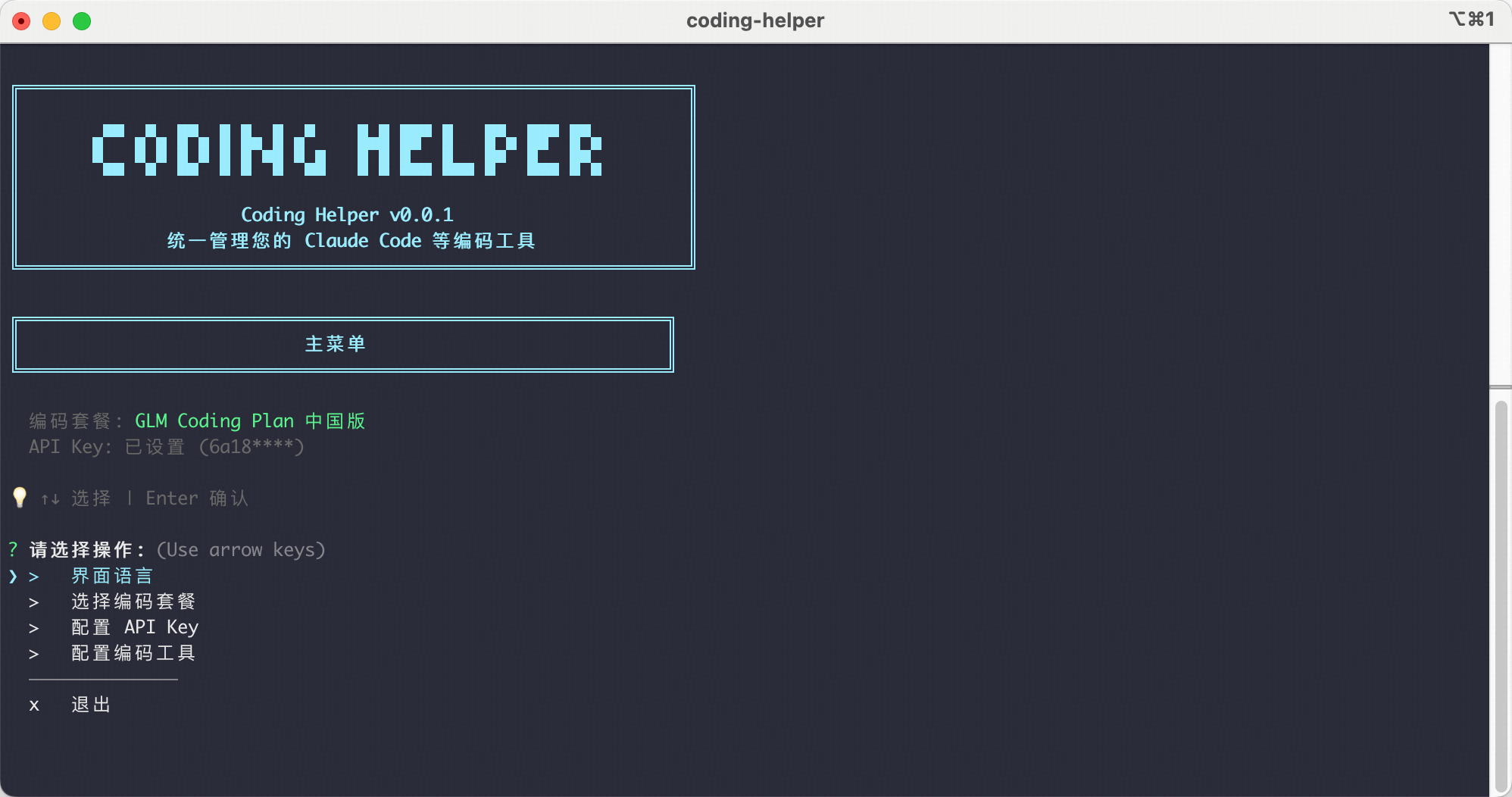
Coding Tool Helper 是一个编码工具助手,快速将您的**GLM编码套餐**加载到您喜爱的**编码工具**中。安装并运行它,按照界面提示操作即可自动完成工具安装,套餐配置,MCP服务器管理等。
### 1. 获取 API 密钥
* 个人版套餐的用户,通过 [个人编程套餐 > 套餐概览](https://bigmodel.cn/coding-plan/personal/overview),新建 API Key
* 团队版套餐的成员,通过 [团队编程套餐 > 我的套餐](http://bigmodel.cn/coding-plan?z_plan=team),获取 API Key(团队套餐 Key 与平台其他 API Key 不通用,使用团队额度请务必使用团队套餐 Key)
### 2. 运行 Coding Tool Helper
```bash theme={null}
# 进入命令行界面,执行如下运行 Coding Tool Helper
npx @z_ai/coding-helper
```
详细说明请参考 [Coding Tool Helper 文档](/cn/coding-plan/extension/coding-tool-helper)。
### 3. 启动 OpenCode
运行 `opencode` 启动 OpenCode:
```bash theme={null}
$ opencode
```
使用 `/models` 命令来选择您要使用的 GLM 模型:
```
/models
```
### 1. 获取 API 密钥
* 个人版套餐的用户,通过 [个人编程套餐 > 套餐概览](https://bigmodel.cn/coding-plan/personal/overview),新建 API Key
* 团队版套餐的成员,通过 [团队编程套餐 > 我的套餐](http://bigmodel.cn/coding-plan?z_plan=team),获取 API Key(团队套餐 Key 与平台其他 API Key 不通用,使用团队额度请务必使用团队套餐 Key)
### 2. 运行 `opencode auth login` 并选择 **Zhipu AI Coding Plan**
```bash theme={null}
$ opencode auth login
┌ Add credential
│
◆ Select provider
│ ● Zhipu AI Coding Plan
│ ...
└
```
### 3. 输入您的 Zhipu AI API Key
```bash theme={null}
$ opencode auth login
┌ Add credential
│
◇ Select provider
│ Zhipu AI Coding Plan
│
◇ Enter your API key
│ _
└
```
### 4. 运行 `opencode` 启动 OpenCode
```bash theme={null}
$ opencode
```
使用 `/models` 命令来选择模型。
```
/models
```
### 5. 其它低版本配置
> 若您使用的低版本 OpenCode 内无 `Zhipu AI Coding Plan` Provider 选项,建议您升级 OpenCode 版本。\
> 或者您可以选择 `Zhipu AI` Provider 后再参考下方切换端点配置。
在 `~/.config/opencode/opencode.json` 中配置:
```
{
"$schema": "https://opencode.ai/config.json",
"provider": {
"zhipuai": {
"api": "https://open.bigmodel.cn/api/coding/paas/v4"
}
}
}
```
## 三、套餐专属 MCP 服务器
GLM Coding Plan 提供了专属的 MCP 服务器,支持视觉识别、搜索、网页读取和开源仓库访问等功能:
* [视觉 MCP 服务器](/cn/coding-plan/mcp/vision-mcp-server) - 支持图像识别和分析
* [搜索 MCP 服务器](/cn/coding-plan/mcp/search-mcp-server) - 支持网络搜索功能
* [网页读取 MCP 服务器](/cn/coding-plan/mcp/reader-mcp-server) - 支持网页内容提取
* [开源仓库 MCP 服务器](../mcp/zread-mcp-server) - 支持开源仓库文档搜索、结构分析和代码读取
**推荐方式**:使用 Coding Tool Helper 可以一键安装和管理所有套餐 MCP 服务器,无需手动配置。
```bash theme={null}
npx @z_ai/coding-helper
```
Coding Tool Helper 会自动检测您的工具环境并安装相应的 MCP 服务器。